


Patient Accounting Archive
Quality Assurance (QA) Resources
Quality Assurance (QA) Instructions
This Quality Assurance (QA) guide walks users through a comprehensive process to compare the financial data in the Patient Accounting Archive with the data from the legacy Electronic Health Record (EHR) system, ensuring data integrity. Users will validate patient records, generate financial reports, and document their findings in the QA log. By following this guide, users will be able to confidently verify that all details in scope for their project have been fully and accurately populated within the Patient Accounting Archive.
Users tasked with performing QA should utilize the provided QA Log to check off various sections of the Patient Accounting Archive and log any discrepancies. If any issues are encountered or questions arise regarding the functionality of the archive, users should contact their Aesto Project Manager.
QA Process Overview
1. Access the Billing tab within DataCapture, where financial details from the patient’s legacy record are stored (See Figure 1.1).

Figure 1.1 The Billing Tab
2. Sort data using column headers, except for Total Payments and Balance.
3. Review and validate each field in the Details section, and record discrepancies in the QA Log.
The first tab of the QA Log is labeled QA General Information, which provides an overview of the data points that should match between the legacy system and DataCapture (Refer to Figure 1.2 for details.).
On the QA General Information tab:
Enter the dollar amount from the legacy system’s Detail Patient Balance Report.
PLEASE NOTE: The legacy dollar amount must include any patient with a balance on their account, regardless of whether it is active AR collections or bad debt.
-
- Enter DataCapture’s Aged Trial Balance (ATB) total.
- Verify that the legacy system’s total and DataCapture’s ATB total match.
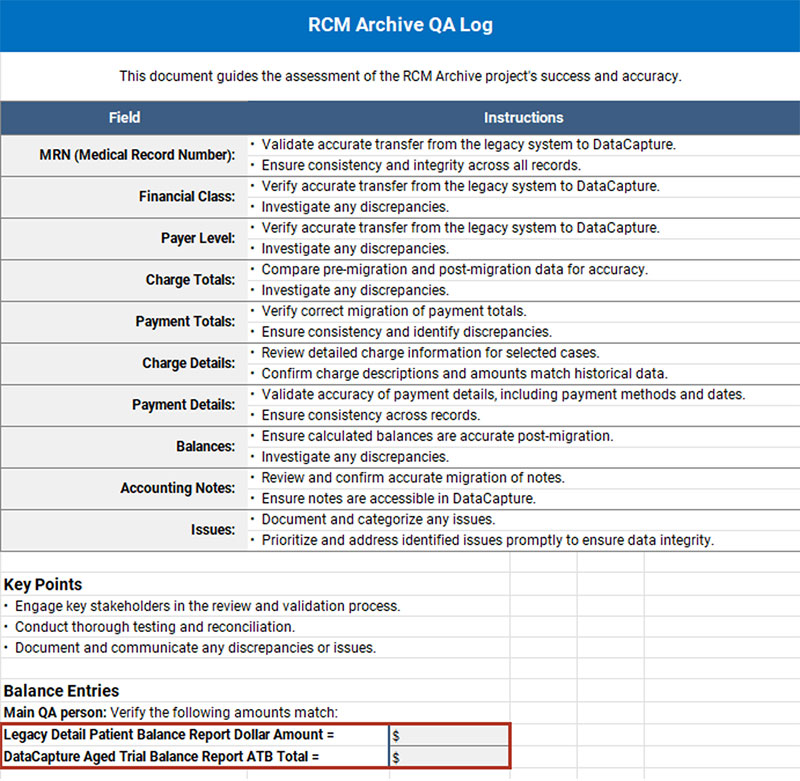
Figure 1.2: The QA General Information tab of the QA Log
Step 1: Running the Aged Trial Balance
- Ensure you have permissions to access the ATB in DataCapture’s Hospital Accounting
- Follow these steps to generate the ATB:
a. Navigate to Hospital Accounting (See Figure 1.3).

Figure 1.3: The Hospital Accounting Module
b. Click on Financial Reports (See Figure 1.4).
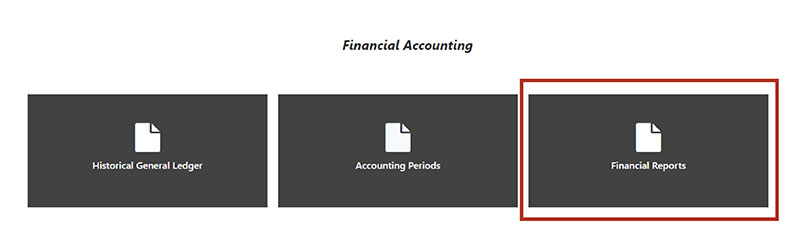
Figure 1.4: The Financial Reports Section
c. Select the Aged Trial Balance tab (See Figure 1.5).

Figure 1.5: The Aged Trial Balance tab
d. Choose the following options on the Aged Trial Balance window (See Figure 1.6).
- Transaction Date
- Include Negative Balances
- Set the required date.
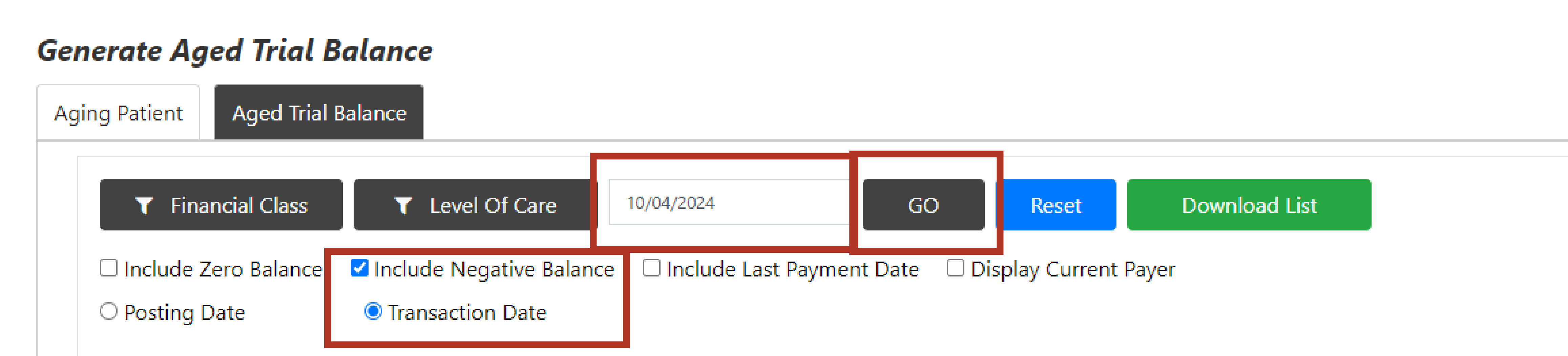
Figure 1.6: The Generate Aged Trial Balance Selections
e. Click Go to generate the report (See Figure 1.6 above).
3. Compare the total ATB with the total of the Detail Patient Balance Report or the ATB from the legacy system (See Figure 1.7).
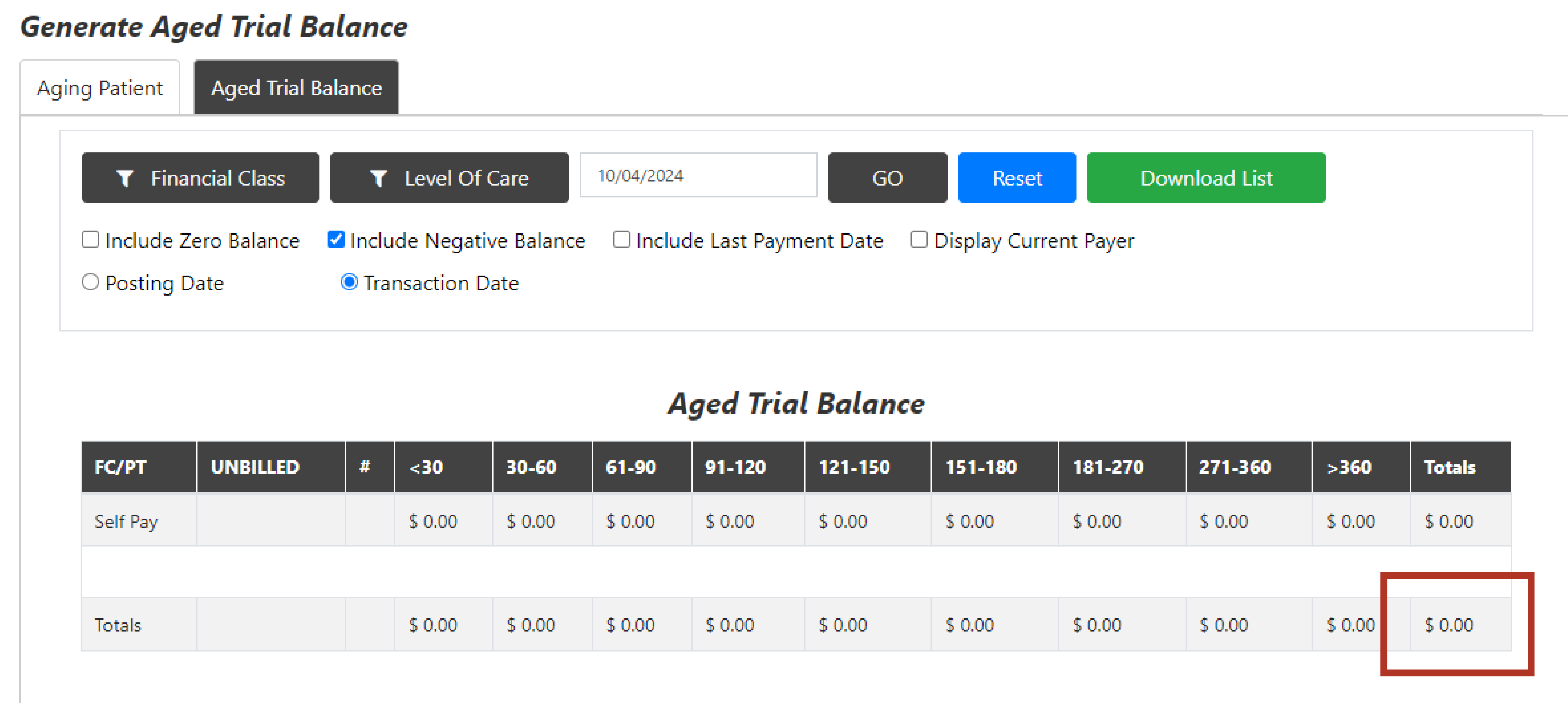
Figure 1.7: The Totals Column of the Generated Aged Trial Balance
4. Download the ATB using the Download List button (See Figure 1.8).

Figure 1.8: The Download List Button
Step 2: Documenting Accounts on the QA Log
- Use the QA Log tab to document the accounts reviewed and any issues identified (See Figure 1.9).

Figure 1.9: The QA Log Tab
2. The following fields must be completed:
- MRN: Enter the Medical Record Number.
- Visit: Specify the encounter being reviewed.
- Patient Name: Enter the patient’s name.
- Date: Provide the visit date.
- Financial Class: Ensure the correct financial class is represented.
- Payer Level: Confirm the current payer for the visit.
- Billing Charges Totals: Use the drop-down to select Correct or Incorrect.
- The Total Charges column from the Billing screen should match the total charges in the legacy system for the visit (See Figure 1.10).

Figure 1.10: The Total Charges Column on the Billing Screen in DataCapture
- Billing Payment Totals: Use the drop-down to select Correct or Incorrect.
- The Total Payments column from the Billing screen should match the total payments in the legacy system for the visit (See Figure 1.11).

Figure 1.11: The Balance Column on the Billing Screen in DataCapture
- Balance: Select Correct or Incorrect from the drop-down (See Figure 1.12).

Figure 1.12: The Balance Column on the Billing Screen in DataCapture
Step 3: Verifying Billing Details
- Click the Details here button on the Billing screen to open the Encounter Billing Details screen (See Figure 1.13).

Figure 1.13: The “Details here” button on the Billing Screen in DataCapture
2. Billing CHG DTL (Charge Details): Verify all charges from the legacy system are correctly represented in DataCapture in the Charges column (See Figure 1.14).
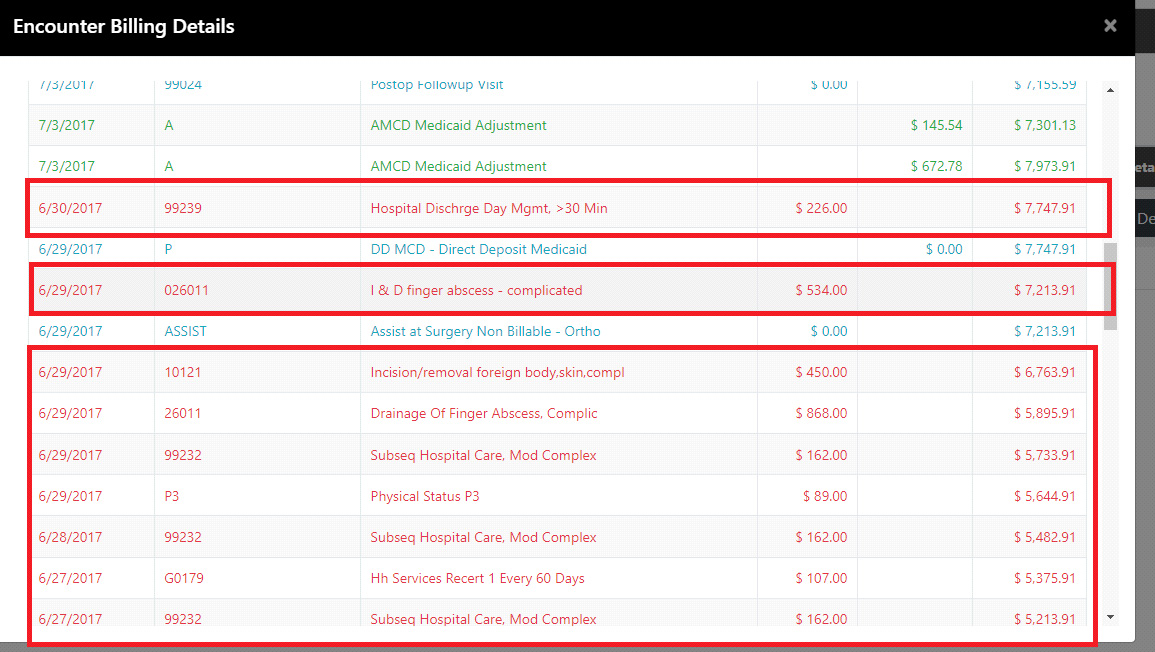
Figure 1.14: The Encounter Billing Details Screen
3. Billing PMT DTL (Payment Details): Verify each of the payments on the visit from the legacy system is represented in DataCapture in the Payments column. Ensure all payments, adjustments, refunds, or bad debt payments match between the legacy system and DataCapture (See Figure 1.15).
PLEASE NOTE: In DataCapture, all payments/adjustments/refunds/bad debt payments (any transaction that will affect the balance of the account that is not a charge) will be considered a payment.
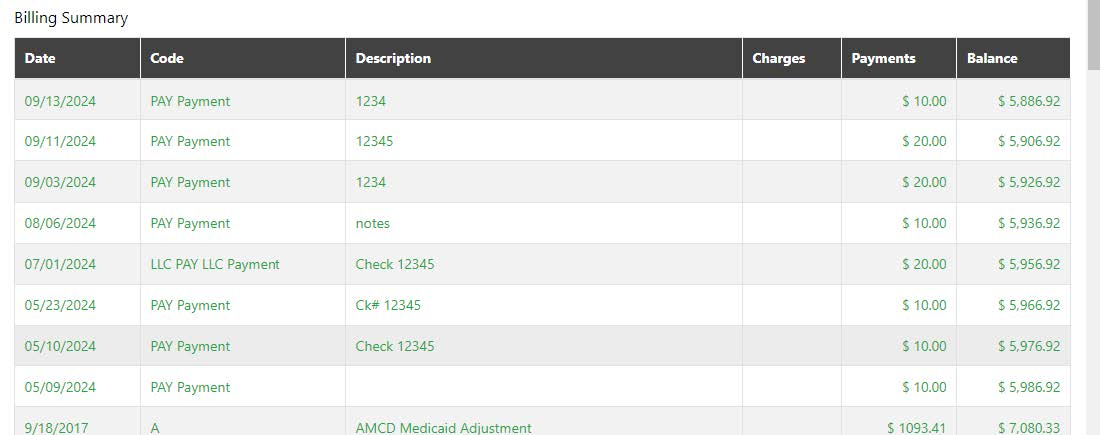
Figure 1.15: The Billing Summary Screen
4. Balance: Check that the Balance in the Encounter Payment Details screen (See Figure 1.16) matches the Balance amount on the Billing screen (See Figure 1.1) and the balance in the legacy system.
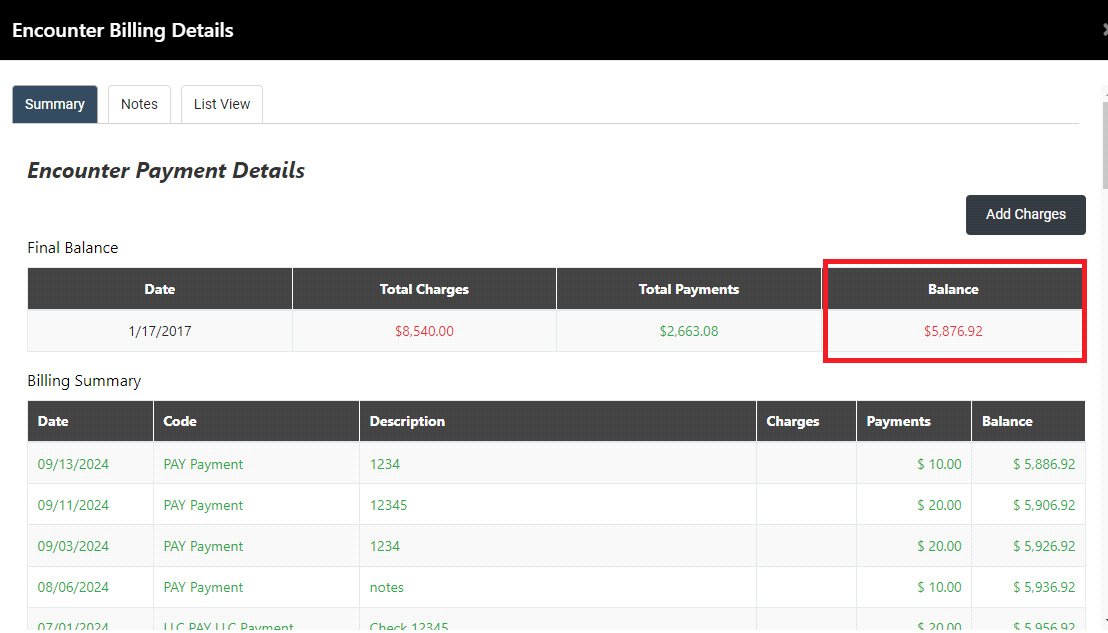
Figure 1.16: The Balance Column on the Encounter Payment Details Screen > Summary tab
5. Account Notes: Compare account notes in DataCapture with those in the legacy system. When viewing the Encounter Billing Details, select the List View tab to access notes (See Figure 1.17).

Figure 1.17: The List View Tab of the Encounter Billing Details Screen
6. Close the Encounter Billing Details screen to return to the Billing screen.
7. Click the View Detailed Bill for Encounters link under the Detailed Bill column to open the detailed bill (See Figure 1.1).
8. All charges are listed on the top half of the screen. Verify the Total Charges on the Detailed Bill matches the Total Charges in the Encounter Billing Details screen (See Figure 1.16) and in the legacy system (See Figure 1.18).
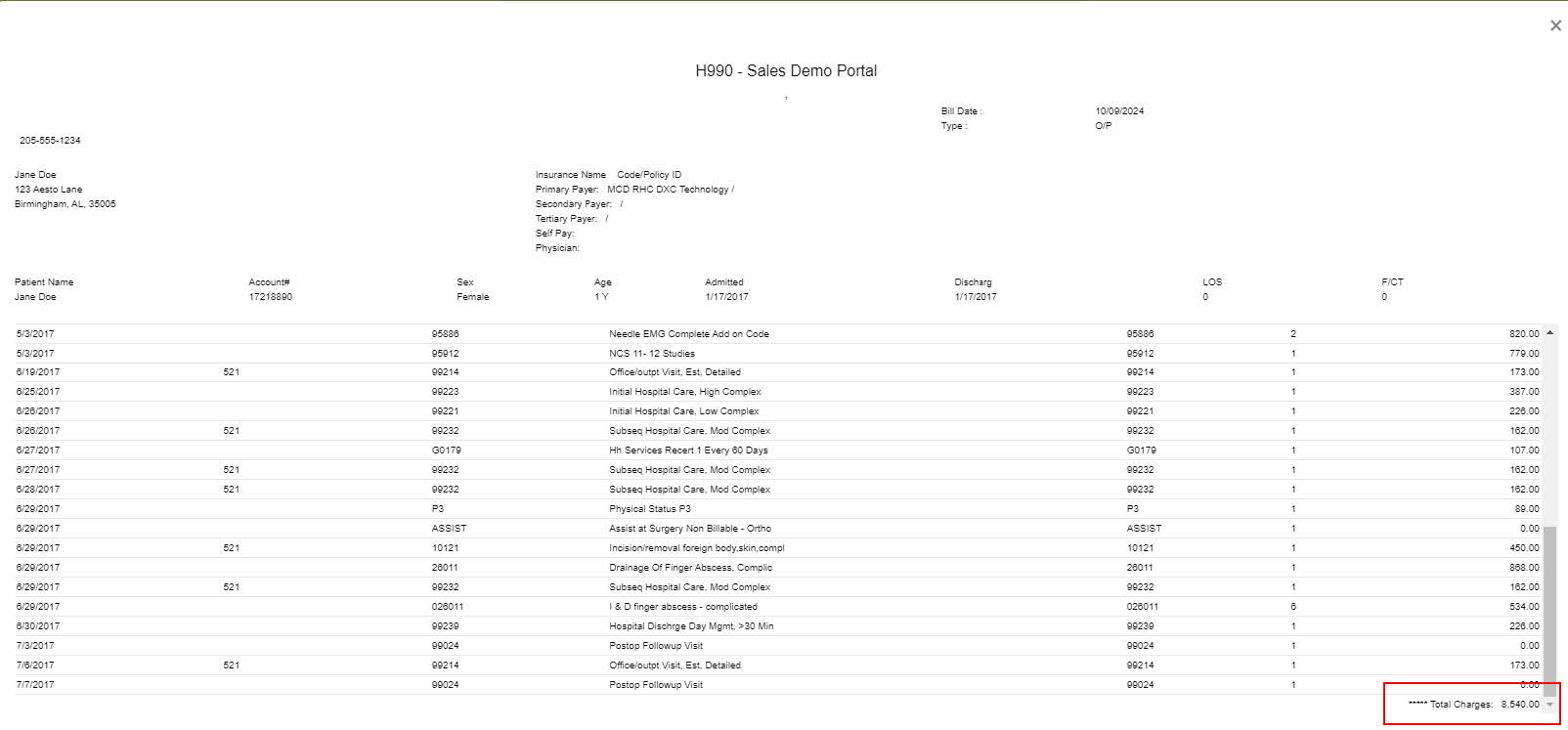
Figure 1.18: The Charges Section on the Detailed Bill
9. All payments are listed on the bottom half of the screen. Verify the Total Payments on the Detailed Bill matches the Total Payments in the Encounter Billing Details screen (See Figure 1.16) and in the legacy system (See Figure 1.19).

Figure 1.19: The Payments Section on the Detailed Bill
10. Verify the Final Balance on the Detailed Bill matches the Balance in the Encounter Billing Details screen (See Figure 1.16) and in the legacy system (See Figure 1.19 above).
Step 4: Reporting Discrepancies
If any discrepancies are found (e.g., a column is marked “Incorrect”), add detailed notes on the issue in the Issue Details column on the QA Balancing Log and attach relevant screenshots from the legacy system. This will help the Aesto team resolve issues in DataCapture > Billing efficiently.
Step 5: Final Steps
Once the QA process is complete, attach the QA log to the portal and notify the Aesto Project Manager via email.
- End users must have permissions assigned to upload portal attachments by configuring the user’s role.
- Navigate to Administration > User Permission.
- Select the Role from the drop-down list.
- Expand the Administrator category, and check the Access box for Practice Attachments.
2. With permissions assigned, click the Practice Attachment button to open the Attachments window. The left side of the Attachments window contains a list of previously uploaded attachments with details such as file ID, description, uploaded by, and upload date. The right side of the window is where attachments are uploaded.
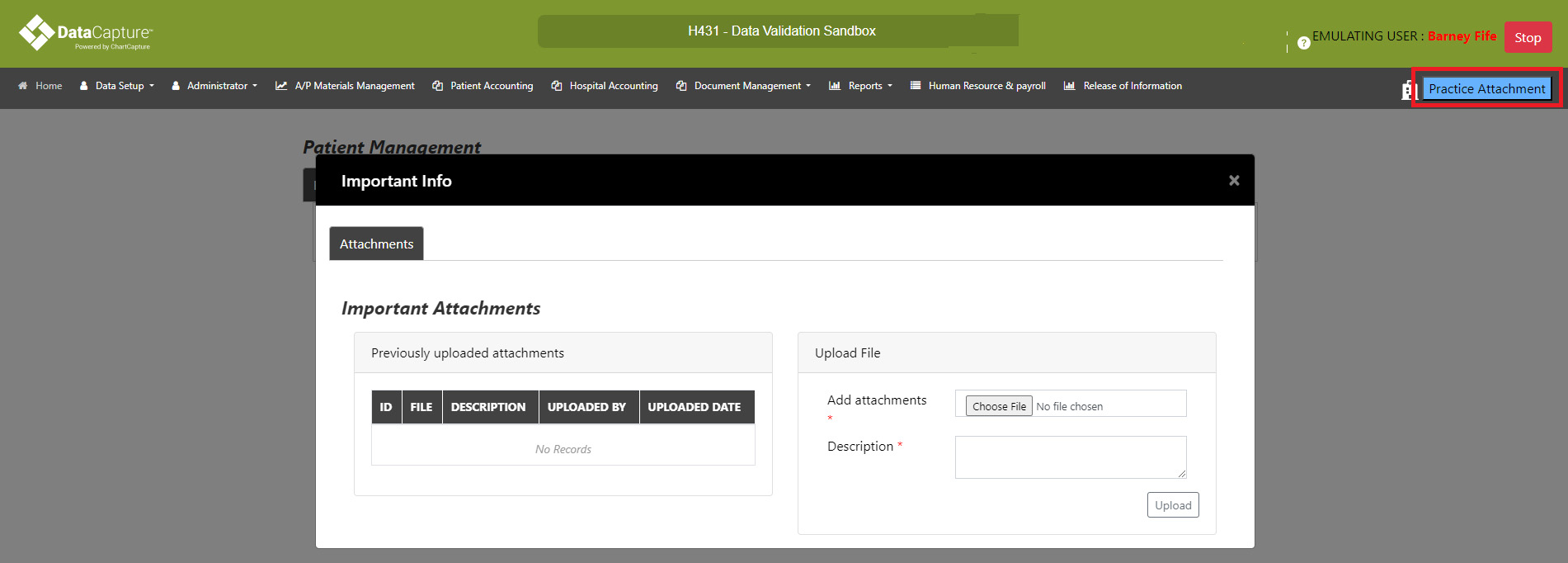
Figure 1.20: The Attachments Window
-
- Click Choose File to locate the file to upload.
- Enter a Description of the file.
- Click Upload to upload the file to the DataCapture portal. Once uploaded, the file will appear in the list. PLEASE NOTE: To download or view attachments from the list, use the blue icons in the attachment’s File column.
4. Notify the Aesto Project Manager via email.
5. The project manager will coordinate with the Aesto team to resolve any issues.
6. Once corrections are made, update the QA log and attach the final version to the portal.