

Patient Accounting Archive
Patient Accounting Archive – Configurations
Content on this page is for Standard Patient Accounting Archive Customers.
Payment Types
To change, add, or remove Payment Types that appear under Transaction Codes:
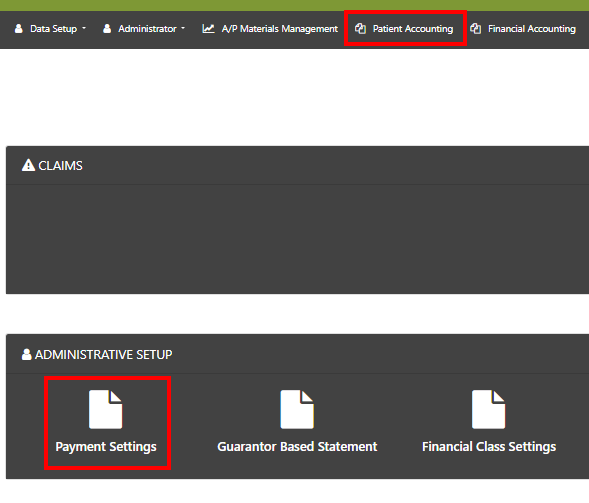
Select Patient Accounting > Payment Settings > Payment Types > Add.
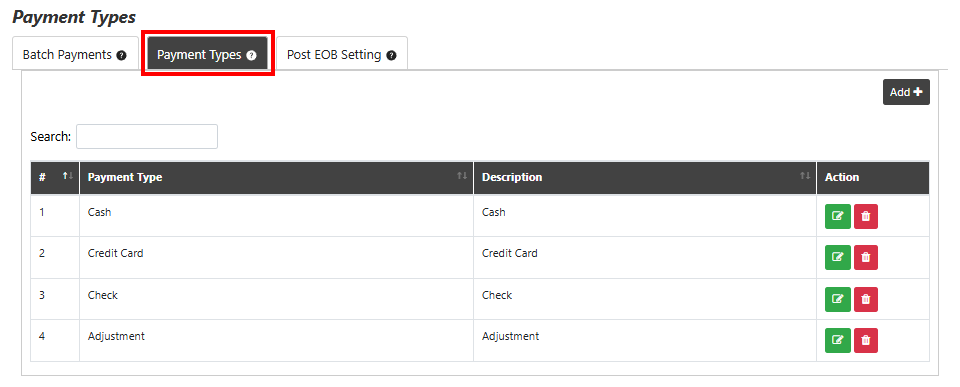
To apply the payment type drop-down option to a transaction code:
Select Batch Payments > “Show Payment Type” for the applicable row.

Guarantor-Based Statements
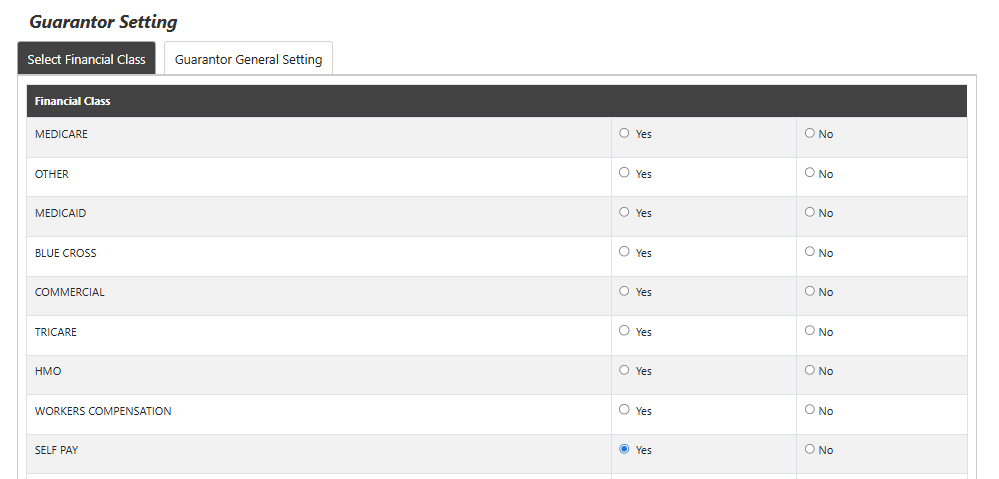
To choose which financial classes will receive guarantor-based statements:
Select Patient Accounting > Guarantor Based Statement > Select “Yes” or “No” for the applicable Financial Class under the Guarantor Setting.

Patient Financial Classes
In the Patient Accounting Archive, financial classes help drive several processes. Specific financial classes can be enabled for various actions, including: being available for selection from dropdown menus, being available by default in the ATB Report, being eligible for dunning, or being listed by default in the payer level dropdown for all encounters.
By default, the payers relevant to each patient visit will appear in the payer drop-down box. Financial classes that should appear on every patient for global options can vary per customer and can be configured in the following steps:
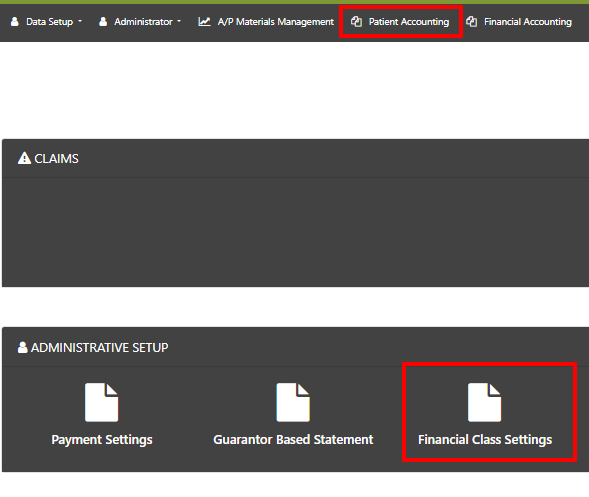
To view and adjust the Patient Financial Classes, select Patient Accounting > Financial Class Settings.
If enabling a Financial Class to be included in Dropdown options, please also designate the Payer Level assignment. This controls the order in which these financial classes will appear in the dropdown list. Don’t forget to save your selections at the bottom of this page before exiting!

Adding or Editing Transaction Codes
For customers who purchase the Standard level of PAA, transaction codes will need to be added to the archive in order to enable the ability to post payments and adjustments. Because each transaction code can be attached to General Ledger codes in the Financial Accounting side of the system, the configuration of these details is managed under Financial Accounting.
Transaction codes can also be added, removed, or edited by the customer at any point after the archive is live.
To add or edit options for transaction codes in the drop-down menu in Batch Payments:
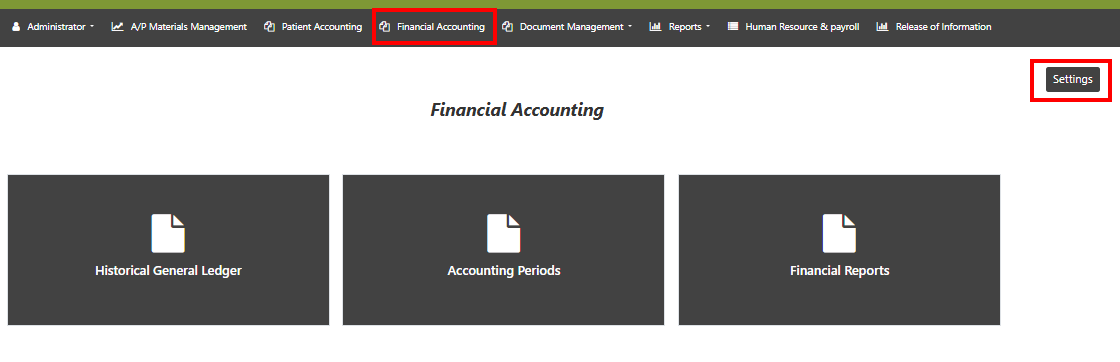
Select Financial Accounting > Settings > General Ledger (GL) crosswalk.

Adding, Editing, and Removing Transaction Codes
The GL Crosswalk contains the list of transaction codes that billers will see when posting payments and adjustments in the Batch Payments and EOB Posting modules of the Patient Accounting Archive.
- Click Add More to enter new transaction codes. Click Save to add.
- Click any hyperlinked field to edit existing data. Click the blue check mark to save or the X to cancel an edit.
- To delete a transaction code, check the box next to the code and click Delete at the bottom.
Transaction Codes: Field Descriptions
- Transaction Code: This is a unique number automatically generated as codes are added.
- Description: This is the label that presents to end users in the Transaction Codes dropdown in any posting screen.
- Transaction Type: Payment transaction codes should be indicated by P, and Adjustment transaction codes should be indicated by A.
- GL Number: If desired, a historical GL number can be noted here. If this is not needed, enter 0.
- Debit A/C & Credit A/C: These codes are not presented to the end user performing posting. These are the General Ledger (GL) account codes that will be debited and credited when the transaction code is selected during posting. At month-end, the GL report that can be generated will reflect these codes in the export that can be used for updating the customer’s General Ledger.
Dunning Configuration
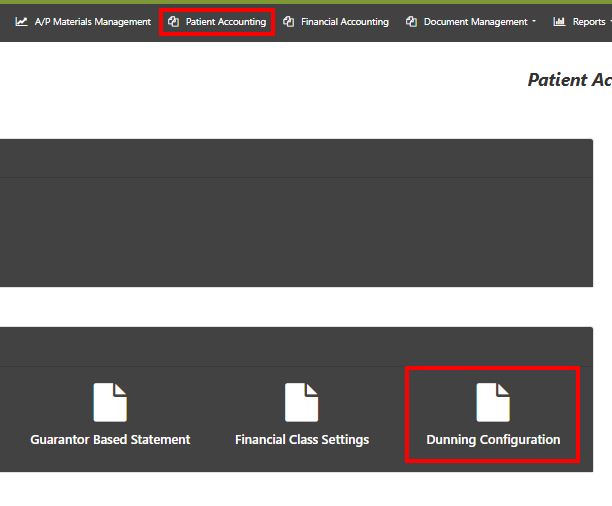
For customers who purchase the Standard level of PAA, custom dunning letters may be configured within the archive. Navigate to Patient Accounting> Dunning Configuration to complete this setup.
Adding and Configuring Dunning Steps
Each step of the dunning process can be configured to trigger based on specific events, and the letters themselves can be tailored to the policy and language as uniquely appropriate for each customer.
- Click Add Step to create a Dunning Letter.
- Choose the Type:
- Notice Days will be the number of calendar days since the last statement was sent.
- Statement Cycle (recommended) will be the total number statements that have been sent.
**Please note that this is only available in the first step. Subsequent steps are required to be Statement Cycle.
- The first step is recommended to be set to 3 statements. Subsquent steps should be each statement beyond the first (Step 2 = 4; Step 3 = 5, etc.), but this is ultimately up to each customer based on the policy and workflow of their debt collection process.
- Designate a Title for this Step (e.g., First Notice, Final Notice)
- Optional: Set an internal description that your team will see when reviewing accounts that fall to this Step of the Dunning process.
- Optional: Present any internal notes your team may find useful.
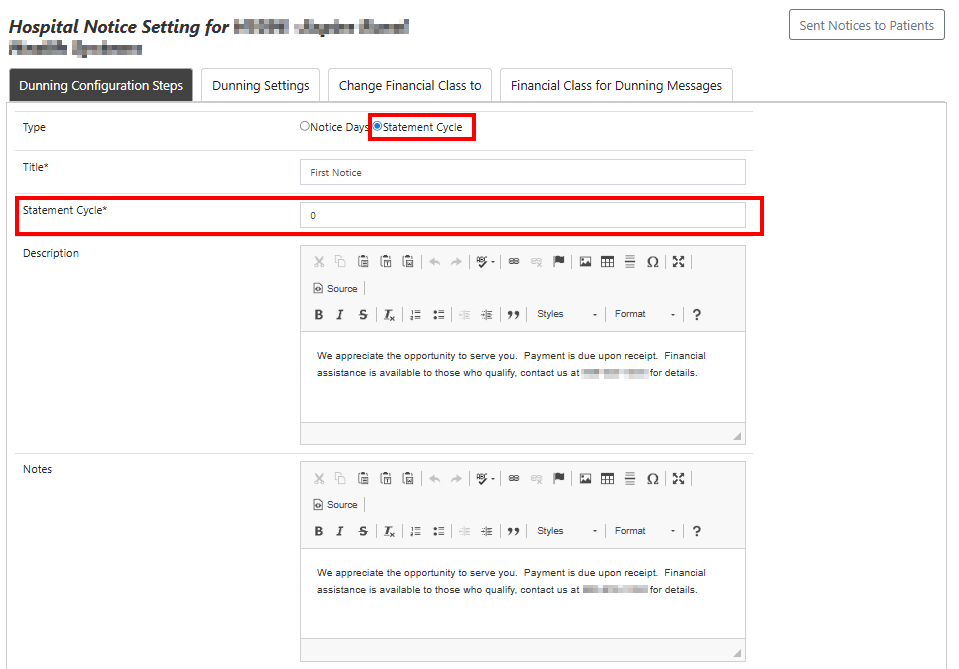
To configure the language of the dunning letters, use the tags on the left of the page to insert guarantor- and patient-specific details as desired. At the bottom of the page, designate the financial class to which this letter should apply.
Encounters will fall to the dunning list when:
- The number of statements that have been sent is equal to or greater than the Statement Cycle setting, and
- The encounter is in the financial class designated at the bottom of the dunning letter configuration, and
- The balance of the encounter is greater than $0.00
Please find Aesto Health’s recommended Dunning Letter template here:
Dunning Letter Template

Additional Settings:
To change the options for financial classes available in the setup of each Step, go to Financial Class for Dunning Messages. Click anywhere in the shown list to add more options.

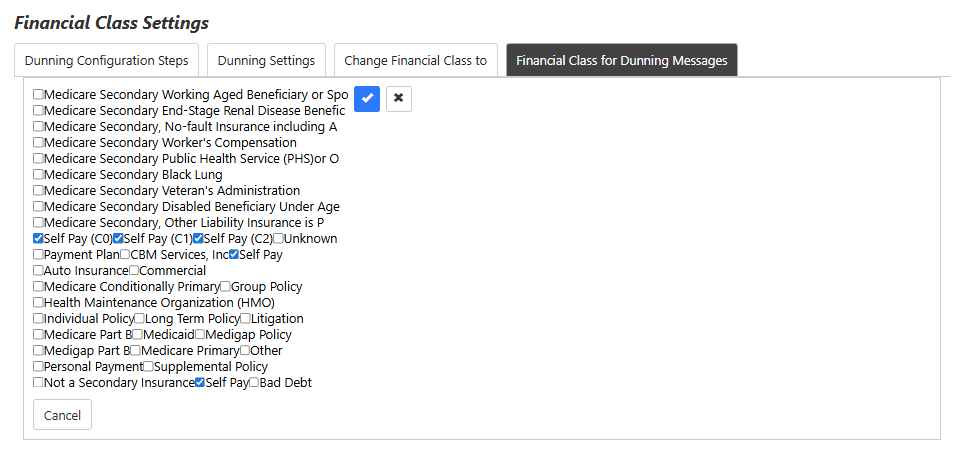
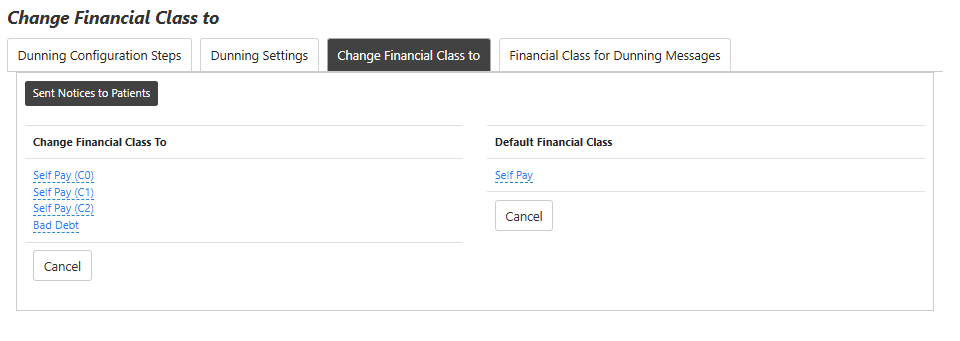
Once encounters are added to a dunning list, they will be moved to a new financial class as their letter is generated. To change the options available in the dropdown list during the dunning process, go to Change Financial Class To. Click anywhere in the shown list to add more options. Select a Financial Class under Default Financial Class for the default option encounters should move to during dunning.