


Patient Accounting Archive
Batch Posting
Content on this page is for Standard Patient Accounting Archive Customers.
Step 1: Access the Batch Payments Screen
Navigate to Patient Accounting > Batch Payments (see Figure 1.1).
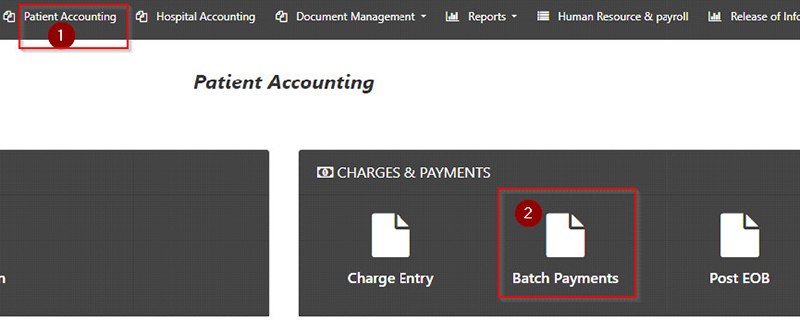
Figure 1.1: Batch Payments Selections in DataCapture

Step 2: Post a Transaction
Enter your payment transactions in the Batch Payment screen.
NOTE: To prevent users from losing input data when navigating the site, a pop-up warning is displayed if a user tries to navigate away from the Batch Payments page without applying changes. The warning informs users that unsaved changes will be lost. Users can click Leave to navigate away from the page without saving changes or cancel to return to Batch Payments with input data retained.
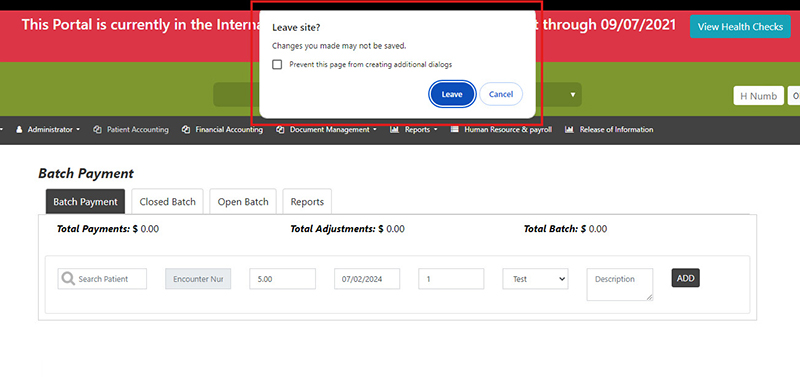
NOTE: The numbers in Figure 1.4 below correlate to each step of the process.

- In the Search Patient field, enter the patient’s encounter number if known.
To search for a patient:
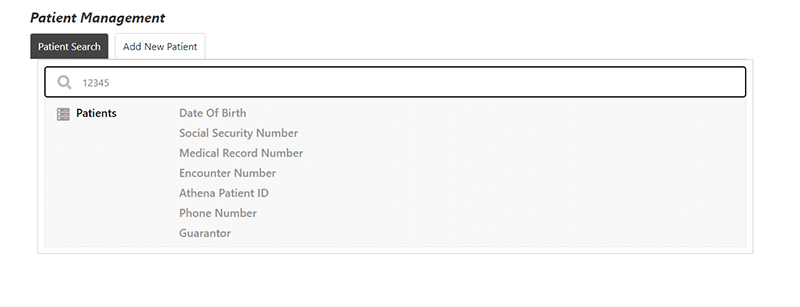
- Enter the patient’s information in the Search Patient field (the first field) to locate the account. You can search by:
- Date of Birth
- Social Security Number
- Medical Record Number (MRN)
- Encounter Number
- Patient Name
- Guarantor
- A list of patients matching the entered criteria is displayed. Double-click on the line of the appropriate patient to select the patient.
- If the patient has multiple encounters, a list of encounters identifying the encounter number, payer level, level of care, date of service, and balance is displayed at the bottom of the screen. Select the appropriate encounter from the list. NOTE: Payments cannot be posted at the MRN level.
Once the encounter number is displayed in the Encounter Number field (second field), you can press the <Tab> key to move to each field on the screen, entering the information in the following steps.
Step 3: Verify and Apply the Transaction
After adding a transaction, a verification line is displayed (see Figure 1.5)
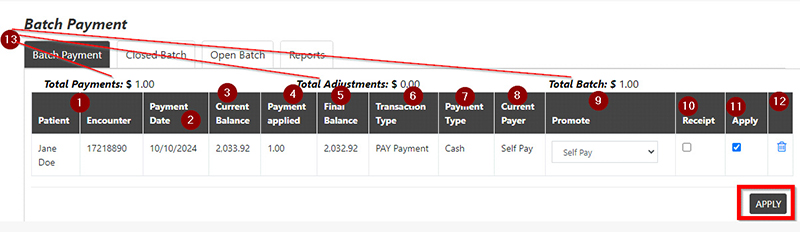
Figure 1.5: The Transaction Details for Verification
1. Verify the following details. NOTE: The numbers in Figure 1.5 above correlate to those listed below.
(1) Patient’s name and encounter number
(2) Payment date
(3) Current balance before applying the entry
(4) Payment entered
(5) New balance (Final Balance)
(6) Transaction type
(7) Payment type (if applicable)
(8) Current payer
(9) If needed, promote the encounter to the next payer level on the patient’s account or the appropriate financial class (e.g., Self Pay, Payment Arrangement).
(10) If a receipt is required for the patient, check the Receipt box for that transaction. If a mistake was made, do one of the following before applying the batch:
(11) Uncheck the Apply box to unapply the transaction. OR
(12) Click the trashcan icon to delete the transaction.
(13) At the top of the screen, review the batch totals for Payments, Adjustments, and Total Batch. NOTE: These totals are driven by the type (Payment or Adjustment) assigned to each transaction code in the GL Crosswalk.
2. Once all transactions are entered and correct, click Apply to finalize the batch. NOTE: The patient’s account will not be affected until you click Apply.
Step 4: Generate and View the Batch Report
Upon clicking Apply to post payments, a Payment Summary report is generated. (See Figure 1.6)

Click Print to view the batch report for the batch in the report viewer, where you can click Print to print the report to the designated printer or print it to PDF. (See Figure 1.7)

To view the Batch Report from the Closed Batch tab
You can later retrieve this report by navigating to the Closed Batch tab in Batch Payments and searching by entry date.
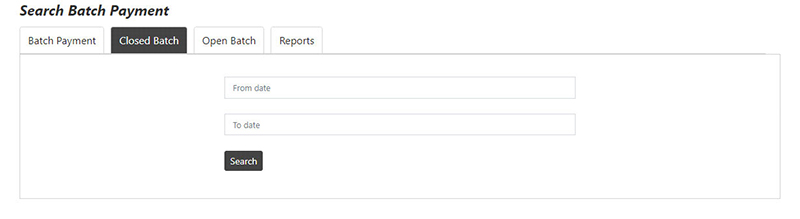
1. Specify a range of dates by clicking in the From date/To date fields, selecting the dates from a calendar, and clicking Search. (See Figure 1.8)
2. Upon clicking the Search button, the Search tab displays a list of batch IDs based on the search criteria (see Figure 1.9)

Figure 1.9: The Closed Batch Tab > Search Tab
Choose from the following tasks:
• Click Generate Report to generate and download the Batch Report in .csv format for viewing in Excel (see Figure 1.10). The generated report includes all batches based on the search criteria.

Figure 1.10: Example of the Batch Report Generated in CSV Format
• Click the View Details link to review transactions within a batch (see Figure 1.11).
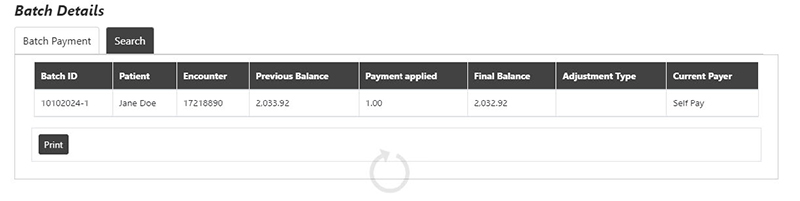
From the View Details screen, click Print to view the Batch Report in the report viewer, where you can print the report to the designated printer or print it to PDF.
To view the Batch Report from the Reports tab
The Batch Report can also be generated from the Report tab in the Batch Payments screen for a selected date range by transaction date or posting date and filtered by payer, username, and batch ID. Follow the instructions below to generate the report. NOTE: The numbers in Figure 1.12 below correlate to each step of the process.

1. Specify a range of dates for review by clicking in the From date/To date fields and selecting the dates from a calendar
2. Select the type of date for the report. Reports can be searched by:
- Transaction Date: The actual date the entry was keyed.
- Posting Date: The selected date during posting.
3. Use the drop-down list to select a specific payer of the transactions to include in the report. Leave it as Nothing selected to include all payers in the report
4. Enter the Username of the payment entry person to include payment transactions that the user entered within the selected date range. See Figure 1.12 for an example of the Batch Report by Username
5. Enter the Batch ID to run the report for a specific batch for the selected date range.
6. Click Generate Report to generate and download the report in CSV format for viewing in Excel, or click Preview Report to preview the report before generating it.

To view payments for a specific patient on the Billing tab
1. Navigate to Home and search by Encounter Number, MRN, or Patient Name.
2. Select the patient’s Billing tab (1) and click the Details here button (2). (See Figure 1.15)
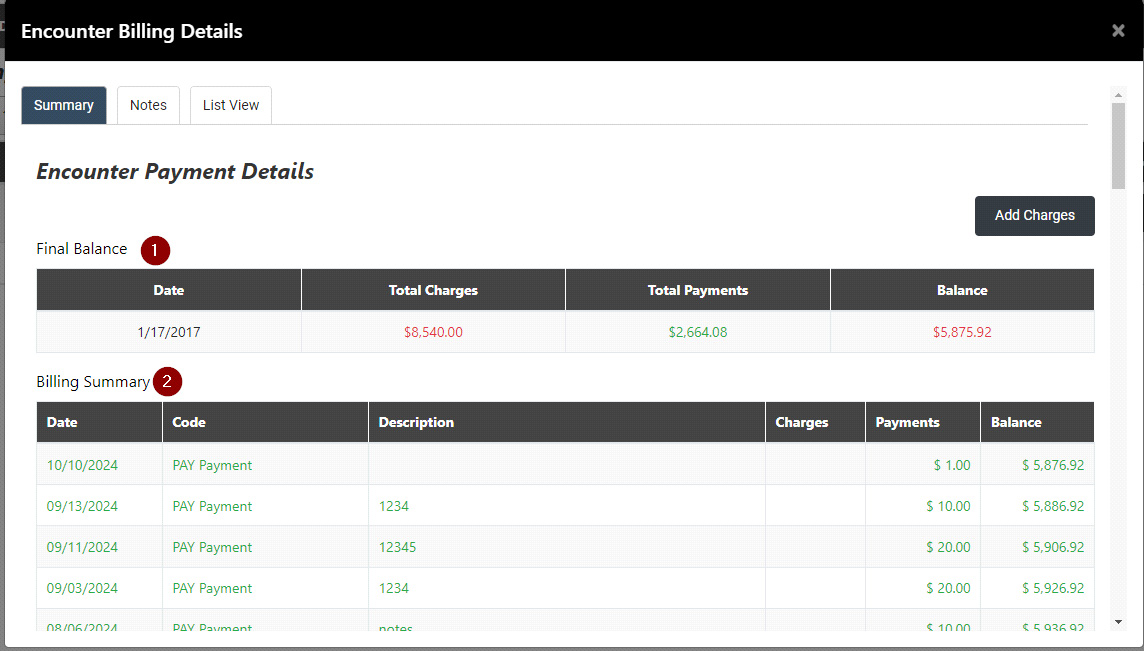
- The Final Balance displays the visit date, total charges, total payments, and balance of the visit. (1)
- The Billing Summary displays all charges for the patient visit, along with all payments/adjustments/refunds. (2)
4. On the main Billing screen, click the View Detailed Bill for Encounters link (1) to view the detailed bill. Click the Print to print the report. (See Figure 1.17 and Figure 1.18)


To view payment details as discrete data on the Encounter tab
1. Navigate to Home and search by Encounter Number, MRN, or Patient Name.
2. Select the patient’s Encounter tab and click the Details button.
3. The encounter line expands to display the details. (See Figure 1.19)
