

Patient Accounting Archive
Adding & Deactivating Users
Content on this page is for Patient Accounting Archive Customers at all levels.
Adding New Users
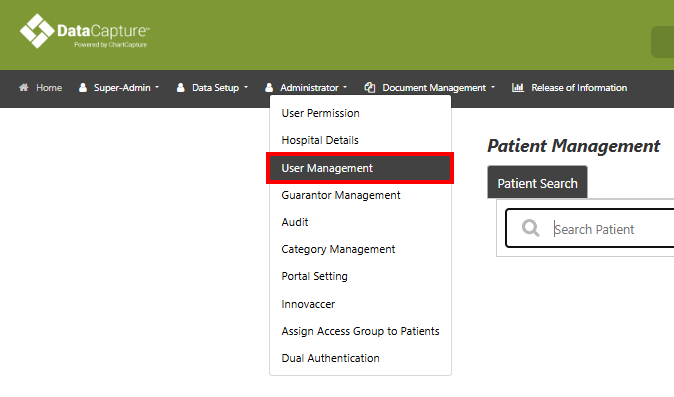
To add new users, navigate to Administrator> User Management. Users can be created with SSO access, direct access via URL, or both.
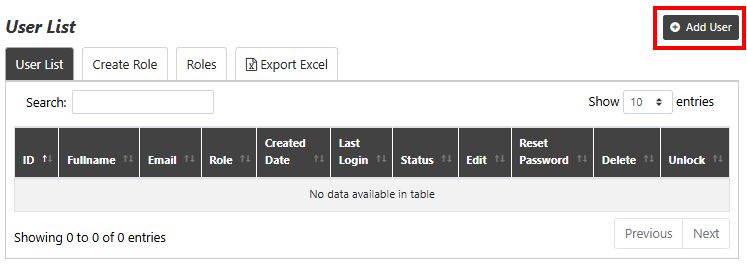
From the User List tab, click Add User.

Adding New Users
Fill in the following required fields as shown in the image above:
- Role – Choose the role that this user will have from the drop-down menu.
- Full Name – Enter the user’s full name.
- Date of Birth – Enter the user’s date of birth.
- If the user will access the archive via SSO, toggle SSO User to Yes.
- SSO Username – If SSO User is enabled, enter the user’s SSO username.
- If the user will access the Patient Accounting Archive directly via URL, toggle Direct Login to Yes. Users may have one or both of these options enabled.
- Email – Enter the user’s email. The user will use this as their username to log in.*If a user already has a DataCapture account with access to a different client space, a different email address must be used for the new account.
- Password – Create a temporary password for the user. New users will be prompted to change their password upon their first login to DataCapture.
- Login Duration – This is the number of minutes a user may be logged into the application before they are automatically logged out due to inactivity. Best practice is 60 minutes, but customers should follow the timeout policies of their organization.
- Click Save.
Updating Permissions for Patient Accounting Data
As part of your DataCapture Patient Accounting Archive project, your Aesto Health Data Analyst will prepare a user role for your billing staff named Billing Staff by default. This role will contain only the permissions to the patient accounting data in scope for your project.
If you have staff in other roles that need to be granted access to your Patient Accounting records, please be sure to let your Aesto Health Data Analyst know so we can assist you with this update. If your project has already closed, please contact our support team by emailing support@aestohealth.com.
Deactivating Users
Users who are no longer with the organization can be disabled through the User List in the DataCapture archive.
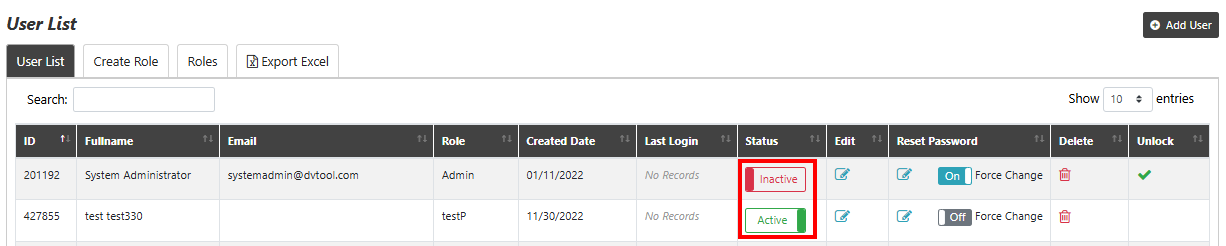
In the User List, navigate to the Status heading for the user to be deactivated. Click Active, and the field will toggle to “Inactive.”
It is recommended to deactivate rather than delete users in order to get the highest quality audit information about previously active users.