

Patient Accounting Archive
Explanation of Benefits (EOB) Posting
Content on this page is for Standard Patient Accounting Archive Customers.
Setting up the EOB Types
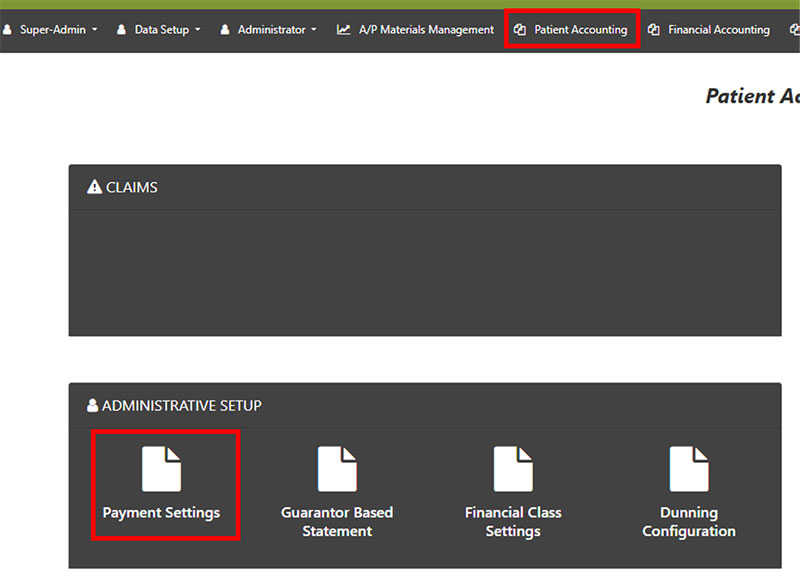
To configure the EOB Types, navigate to Patient Accounting > Payment Settings > Post EOB Settings.

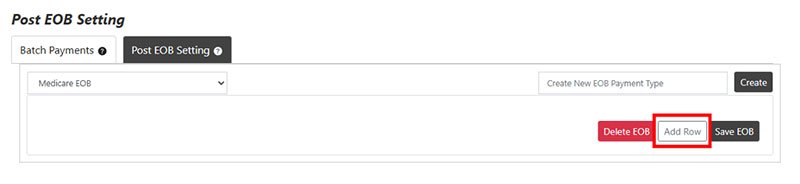
- To add a new EOB Type Template, name the EOB Type desired and click Create.
- To edit an existing EOB Type, select the desired option from the drop-down menu.
- Click Add Row to add transactions to the template.
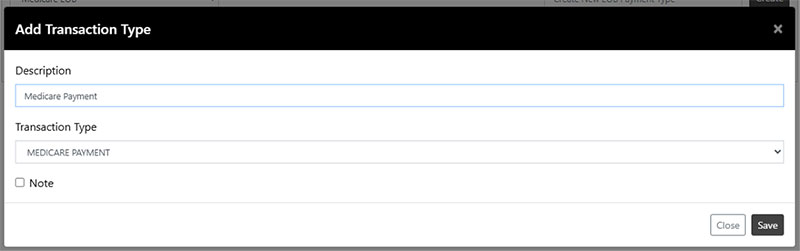
- Select the appropriate transaction codes from the drop-down menu.
- You may add as many transactions to the template as needed.
- If any lines should be a note (meaning a line from an EOB that will not affect the patient’s balance), check Note beside that transaction code line.
- Patient Responsibility, Co-pay, Co-insurance, and Non-covered are all options by default in the EOB Posting module. These should not be added to individual EOB Type Templates.
- Click Save EOB when all codes have been added.

Posting an EOB
1. Navigate to Patient Accounting.
2. Select Post EOB.

3. Select EOB Type from the first drop-down menu.
4. Select the date from the calendar drop-down menu or enter it manually.
5. Type the encounter number and Click Enter.
The patient’s name, balance, and current financial class will appear.
6. Select any additional line item options that do not affect a patient’s balance, such as Patient Co-Pay, Patient Responsibility, Non-Covered, Co-Insurance, or Description. These are notes that will be displayed in the payments section of DataCapture.
7. Enter amounts into text boxes appropriately.
8. Click Add Payment.

Once a payment has been posted, the following details will appear:
- Patient encounter number and patient name.
- Payments and adjustments that have been posted already, with a total at the bottom for each payment or adjustment type.
- The patient’s new final balance, detailing expectations on the account.
If multiple lines for the same account are added to the same EOB, the balance will update on each line accordingly. - The payer or financial class for the account can be promoted by the drop-down menu on each account.
- When all entries have been made for the EOB, click Submit.
Entries on an EOB can be edited before submitting by clicking on any amount’s link and updating as needed.
Reports
In the Patient Accounting section, navigate to EOB Report to print the patient’s postings from the Post EOB module.
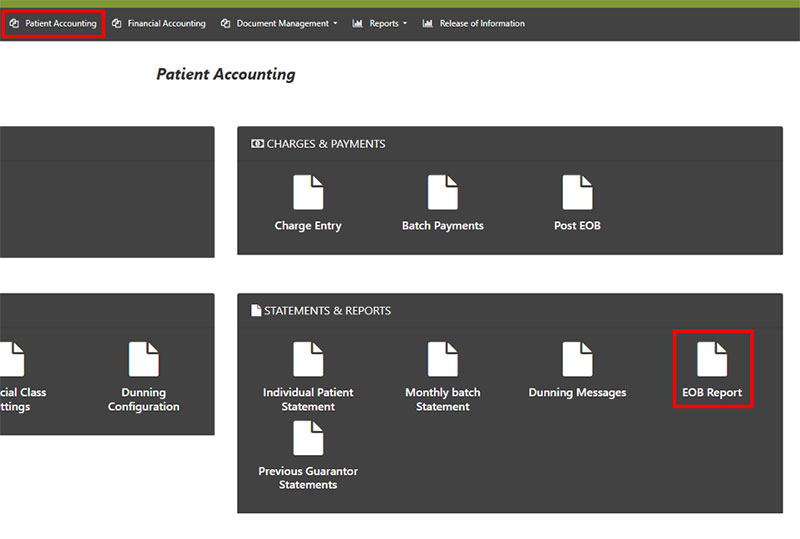
To select a batch, choose a date from the drop-down menu, or type it in manually and click Search. Select the EOB from the list. Click Print EOB to send the report to a PDF.
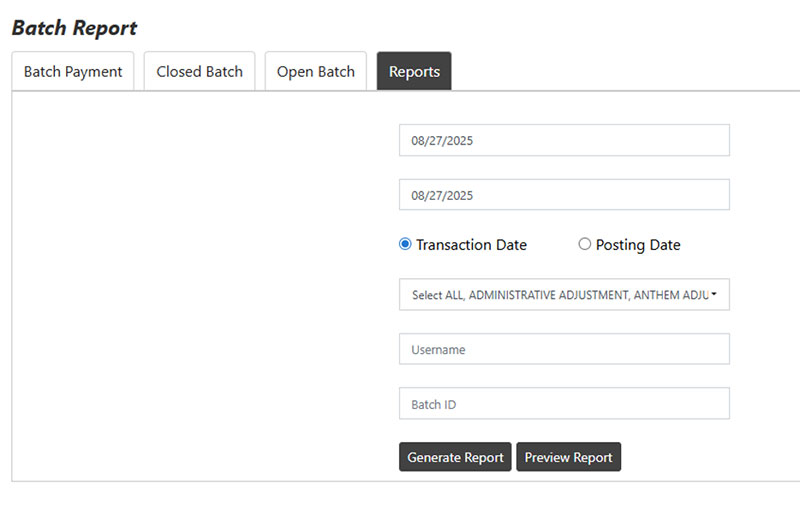
Reports can be found at the top of the Batch Posting area. These reports will show all transactions entered through Post EOB or Batch Payments.
These can be searched by date range and any number of transaction codes in the client’s list. This report can be previewed in the application, or it can be generated in Excel.
The Transaction Date is when the entry was keyed into the system.
The Posting Date is the date that was selected from the calendar during the posting.
Looking up Payments by Patient
- To see payments entered on a patient’s account, navigate Home and search for the patient by encounter number, medical record number (MRN), or patient name.

2. Navigate to the patient’s Billing tab.
3. Click the Details for the encounter you wish to see.

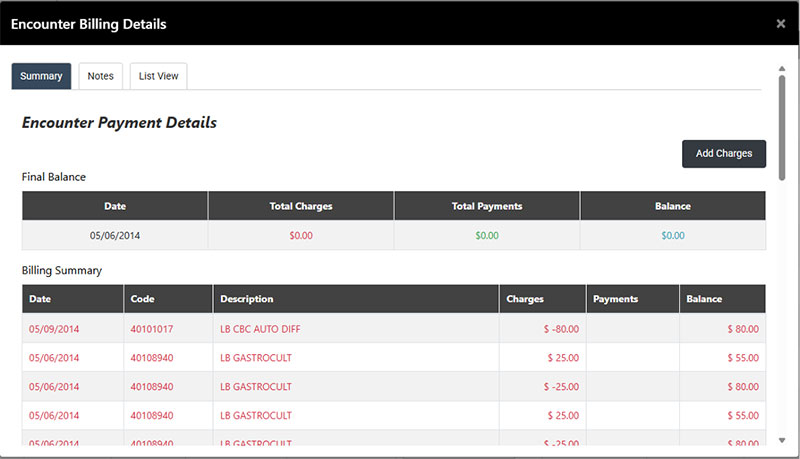
- In the Details, all entries made from both the legacy system and from DataCapture will appear in the Summary tab in chronological order. Hover over any details to see full descriptions if they are cut off on the page. The Total Charges, Total Payments, and Balance will also be summarized at the top for each encounter.