

Patient Accounting Archive
Month-End Procedures
Content on this page is for Standard Patient Accounting Archive Customers.
goals of these steps include completing posting, generating dunning letters, obtaining the general ledger
report, creating guarantor-based statements, and running month-end reports.
Step 1: Complete All Posting
Ensure all postings for the month are completed. It is recommended to close the accounting period on the
final day of the month (or as close as possible). For detailed instructions, refer to the DataCapture Batch
Posting Job Aid.
Step 2: Complete the Dunning Process
If you have opted into the dunning process, review the Dunning Messages list before closing the
accounting period.
To complete the dunning steps:
- Navigate to Patient Accounting > Dunning Messages. (See Figure 1.1)
- Review the list of patients eligible for the first warning letter, along with encounter details such as
patient name, balance, and last payment date. - Select the patients who should receive a letter.
- Review the letter template shown on the screen.
- Choose to either:
-
- Include the letters in the statement file that will be generated in the next section, or
- Print the letters immediately to a PDF for separate distribution.
-
- Repeat the steps for any additional letters.
NOTE: An automatic nightly process reassesses patient accounts for dunning. Refer to the Dunning Configuration section in Patient Accounting for more details.

Step 3: Close the Accounting Period
This step should be restricted to authorized users only.
1. Once all steps above are complete, navigate to Hospital Accounting > Accounting Periods. (See
Figure 1.2 and Figure 1.3)
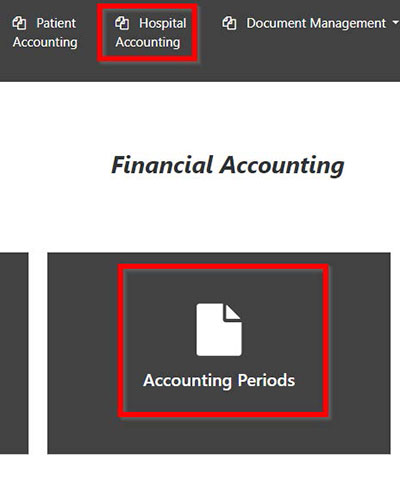
Figure 1.1: The Patient Accounting > Dunning Messages Selections
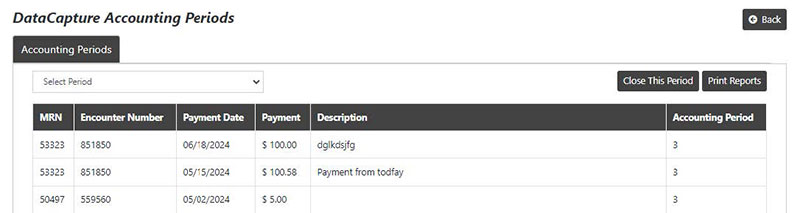
2. Click Close This Period. Closing the accounting period triggers two events: the general ledger
export and the generation of guarantor-based statements. Continue with the steps below.
Step 4: Generate the General Ledger Export
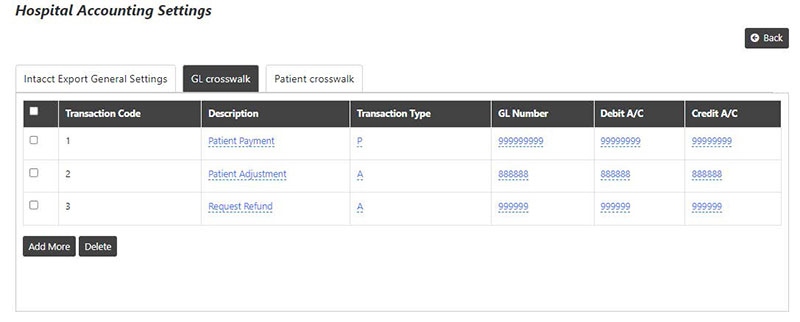
NOTE: Ensure that transaction codes used during posting are linked to general ledger
accounts. For more details, go to Hospital Accounting > Settings > GL Crosswalk (see
Figure 1.4), or refer to the “DataCapture Financial Administrative Settings Guide.”
the Select Period drop-down list. (See Figure 1.5)
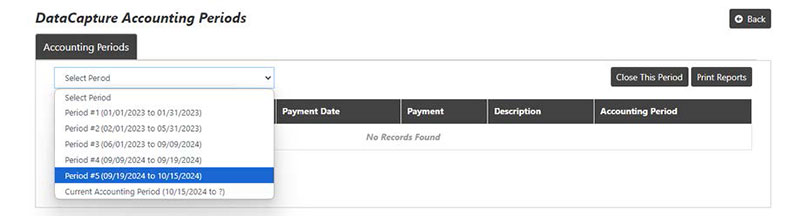
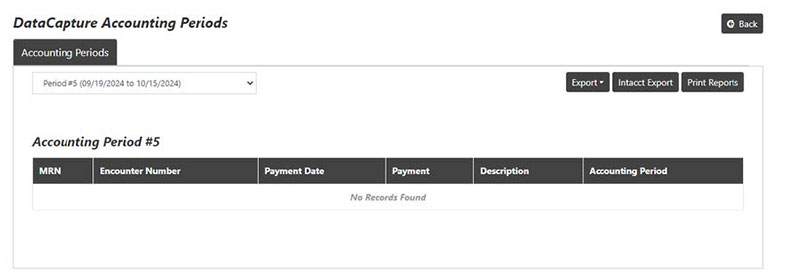
Choose from the following:
- Export: This option allows you to export the report in your preferred format. Select either
Export PDF or Export Excel from the drop-down menu. (See Figure 1.7 for the PDF format and
Figure 1.8 for the Excel .csv format.)


- Intacct Export: This option allows you to export a report of General Ledger entries to Excel in
.csv format, which can then be sent to a third-party vendor. (See Figure 1.9)

NOTE: The Intacct report is generated based on the parameters in Hospital Accounting >
Settings > Intact Export General Settings. (See Figure 1.10)

Step 5: Generate Guarantor-Based Statements
Statements are generated for all financial classes selected in the Guarantor-Based Statements settings in
the format selected under Guarantor General Settings. The statement file should be available within a few
hours and can be found at Patient Accounting > Monthly Batch Statement. The filename will include the generation date.
NOTE: It is recommended that the accounting period be closed at the end of the month
so that the file is ready the next business day.

To add a message to the statements (backside), send the content in a Word document to your project
manager or, for live clients, to support@chartcapture.com.
NOTE: The message will continue to appear on the statements until we are informed to
remove it.
Letters will be loaded as they are received. Aesto Health is not responsible for
grammatical, typographical, or informational errors.
Step 6: Generate Month-End Reports
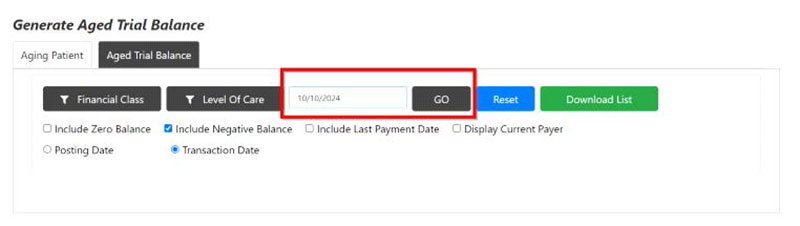
The pre-built report available is the Aged Trial Balance (ATB). To access:
- Navigate to Hospital Accounting > Financial Reports > Aged Trial Balance.
- All financial classes and level of care are included by default.
- Choose to include/exclude negative and zero balances as needed.
- Click Go to view summary totals by financial class, or click Download List to download the detailed list for specific patient account information.